
Top choices
Specs as stated on the manufacturers' listings; the price shows on the retailer's page.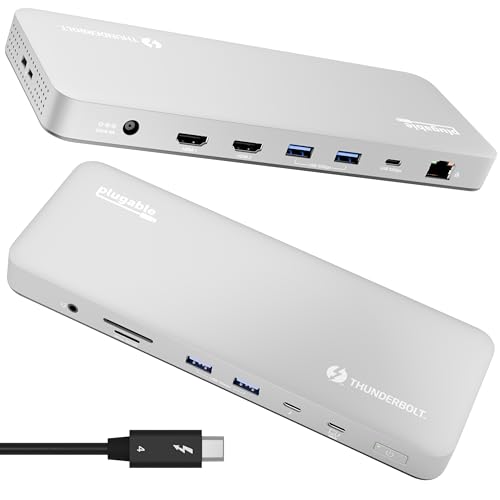 Best for recent MacBooks · dual HDMI, no driverPlugable Thunderbolt 4 Dock for MacBook (TBT-UDM)Two HDMI monitors on a recent MacBook without installing anything: the listing supports two 4K 60 Hz HDMI displays on all M4 and M5 systems, Pro and Max M-series Macs, and M3 Macs in clamshell mode, with no driver. You also get 13 ports, including one downstream Thunderbolt 4 port, one USB-C, four USB-A, SD and microSD UHS-II, Ethernet and 3.5 mm audio, and 100 W host charging.Watch out: Read the supported list before you order: a base M1 or M2 MacBook Air is not in it, and on an M3 the second screen needs the lid closed. For those, the DisplayLink dock below is the workaround.Check price on Amazon.ca ↗
 Two screens on a base MacBook Air · DisplayLinkPlugable USB-C DisplayLink Dock, Dual 4K (for M1 to M5 Macs)The fix for a MacBook that only drives one external monitor on its own. Plugable states this 14-in-1 dock enables two 4K 60 Hz monitors over HDMI, DisplayPort or both, even on Macs that natively support only one external display, using DisplayLink. The listing adds front USB-C and USB ports, three USB 3.0 ports, SD and microSD readers, a headset jack, Ethernet and 100 W charging.Watch out: DisplayLink needs a driver install on the Mac. Plugable's other DisplayLink listings warn that protected streaming apps (Netflix and similar) do not play through DisplayLink outputs, and that it suits office work rather than gaming.Check price on Amazon.ca ↗
 Dual monitor on Windows · USB-CUGREEN Revodok Pro 10-in-1 Docking StationThe plain USB-C docking station for a Windows laptop and two monitors: two HDMI ports at 4K 60 Hz, two 10 Gb/s USB-C data ports, two USB-A ports, Gigabit Ethernet and SD and microSD readers, as listed. Plug your laptop charger into its 100 W PD input and UGREEN states up to 85 W passes through to the laptop.Watch out: UGREEN writes that on a MacBook all extended monitors show the same content, so it mirrors rather than extends on macOS. The charger is not included, and the USB ports do not charge or carry video.Check price on Amazon.ca ↗
Working from home on a laptop usually ends the same way: a tangle of a charger, an HDMI cable, a USB keyboard, a mouse receiver and a network adapter, unplugged and replugged every day. A docking station or a USB-C hub puts all of that behind one cable. The hard part is that “USB-C” covers very different things: what a dock can do depends on your laptop's port, its operating system and, on a Mac, its exact chip.
The short answer
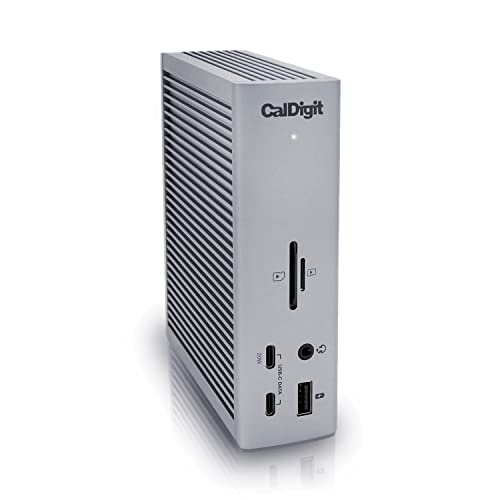
- Thunderbolt 4 or USB4 laptop, full desk: the CalDigit TS4, 18 ports and 98 W charging, as listed.
- Recent MacBook, two HDMI monitors, no driver: the Plugable TBT-UDM, 100 W charging.
- Base MacBook Air stuck at one external screen: Plugable's DisplayLink dock, dual 4K 60 Hz with its driver.
- Windows laptop, two monitors, plain USB-C: the UGREEN Revodok Pro 10-in-1.
- Light travel or one monitor: the Anker 7-in-1 hub, or the Satechi 8-in-1 if you need Ethernet.
How we picked, and what we did not do: we have not plugged in any of these docks. We looked for one model per real setup (full Thunderbolt 4 desk, recent MacBook, base MacBook Air, Windows dual monitor, compact hub, hub with Ethernet, ThinkPad office, small Thunderbolt hub), kept only listings that state their laptop charging watts and screen support, and read every specification from the manufacturer’s Amazon.ca listing on November 27, 2026. Every product on a card was in stock in Canada that day; several Belkin, Dell and Lenovo models were low in stock and left out. Where a listing leaves a number out, we write “not stated”. Links to Amazon are affiliate links; BranchéQC may earn a commission at no extra cost to you. We do not write prices by hand: the button says “Check price on Amazon.ca” and the Amazon page is what counts.
USB-C hub vs docking station: what is the difference?
USB-C hub (dongle, multiport adapter)
A hub is a small block on a short cable, powered by the laptop. It typically adds one HDMI output, two or three USB ports, a card reader and a PD input: you plug your own laptop charger into the hub and it passes power through, keeping a few watts for itself. The Anker 7-in-1 and the Satechi 8-in-1 are hubs. Ideal for a laptop bag and one monitor.
Docking station
A dock is bigger, sits on the desk and usually has its own power supply, so it charges the laptop and the accessories without your charger. It adds more video outputs, wired Ethernet, audio and more USB ports. The CalDigit TS4, the Plugable docks and the Lenovo ThinkPad dock are docking stations. The line between the two is blurry: UGREEN calls its Revodok Pro a docking station, yet it runs on the laptop's power like a hub.
Thunderbolt 4, Thunderbolt 5 and USB4 vs plain USB-C
The connector is the same oval, but the port behind it is not. A Thunderbolt 4 or USB4 port, marked with a lightning bolt on many laptops, carries 40 Gb/s and usually two monitors; the CalDigit TS4, Plugable TBT-UDM, Lenovo ThinkPad and Belkin Connect are Thunderbolt 4 docks. A plain USB-C port may carry video (DisplayPort Alt Mode) or not at all: Acer's hub listing says so plainly, asking you to make sure your USB-C device supports DP Alt Mode for video. If your laptop's spec sheet does not mention video on USB-C, a hub's HDMI port will stay dark.
Thunderbolt 5 docks have arrived for the newest laptops. The Anker Prime TB5 docking station lists 140 W charging, 2.5 GbE and dual 8K 60 Hz on Thunderbolt 5 Windows laptops, and the CalDigit TS5 lists 140 W host charging aimed at the 16-inch MacBook Pro, a 240 W power supply and dual 6K 60 Hz on macOS. On a Thunderbolt 4 laptop they work, but you pay for speed you cannot use.
The eight docks and hubs, compared on published specs
Every figure is the manufacturer’s own. Screen counts depend on your laptop as much as on the dock; where a listing gives no number, the table says so rather than guessing.
| Model | Type | Connection | Monitors (listed) | Laptop charging | Ethernet | Card reader |
|---|---|---|---|---|---|---|
| CalDigit TS4 Thunderbolt 4 Dock | Thunderbolt 4 dock, powered | Thunderbolt 4, 40 Gb/s | 1× 8K (Windows) or 6K 60 Hz (macOS); 2× 4K 60 Hz (Windows) | 98 W | 2.5 GbE | SD + microSD 4.0 UHS-II |
| Plugable Thunderbolt 4 Dock for MacBook (TBT-UDM) | Thunderbolt 4 dock, powered | Thunderbolt 4, 40 Gb/s | 2× 4K 60 Hz HDMI or 1× 6K | 100 W | Yes, speed not stated | SD + microSD UHS-II |
| Plugable USB-C DisplayLink Dock, Dual 4K (for M1 to M5 Macs) | USB-C DisplayLink dock, powered | USB-C (driver required) | 2× 4K 60 Hz, HDMI or DisplayPort | 100 W | Yes, speed not stated | SD + microSD |
| UGREEN Revodok Pro 10-in-1 Docking Station | USB-C dock, bus-powered | USB-C | 2× 4K 60 Hz HDMI (Windows) | 85 W pass-through (100 W PD input) | 1 GbE | SD + microSD |
| Anker 7-in-1 USB-C Hub (4K 60 Hz HDMI) | USB-C hub, bus-powered | USB-C, 5 Gb/s data | 1× 4K 60 Hz HDMI | 85 W PD (title); 100 W PD input | No | SD + microSD |
| Satechi 8-in-1 USB-C Hub V2 | USB-C hub, bus-powered | USB-C | 1× 4K 60 Hz HDMI | Up to 115 W pass-through, as listed | 1 GbE | SD + microSD |
| Lenovo ThinkPad Universal Thunderbolt 4 Dock | Thunderbolt 4 dock, powered | Thunderbolt 4, 40 Gb/s | 1× 8K 30 Hz or up to 4× 4K 60 Hz | Up to 100 W | Not stated in the listing summary | Not stated |
| Belkin Connect Thunderbolt 4 Dock (5-in-1 Core Hub) | Thunderbolt 4 hub, powered | Thunderbolt 4, 40 Gb/s | 2× 4K 60 Hz or 1× 8K 30 Hz | 96 W | No | No |
Which docking station for your laptop
CalDigit TS4 Thunderbolt 4 DockThunderbolt 4 dock, powered · 98 W laptop chargingThe dock to buy once if your laptop has Thunderbolt 4 or USB4. The listing counts 18 ports: 3 Thunderbolt 4 ports at 40 Gb/s, 8 USB ports at 10 Gb/s, a DisplayPort 1.4 output, SD and microSD 4.0 UHS-II readers, 2.5 GbE wired network, 3 audio ports and a security slot, plus 98 W charging to the laptop over the same cable. CalDigit lists dual 4K 60 Hz on Windows and dual 6K 60 Hz on M1 Pro and M1 Max Macs.Watch out: The listing states that original M1 Macs are limited to a single display. There is no HDMI port in the listed port count: a second screen goes through a Thunderbolt port and the right cable or adapter.Check price on Amazon.ca ↗Plugable Thunderbolt 4 Dock for MacBook (TBT-UDM)Thunderbolt 4 dock, powered · 100 W laptop chargingTwo HDMI monitors on a recent MacBook without installing anything: the listing supports two 4K 60 Hz HDMI displays on all M4 and M5 systems, Pro and Max M-series Macs, and M3 Macs in clamshell mode, with no driver. You also get 13 ports, including one downstream Thunderbolt 4 port, one USB-C, four USB-A, SD and microSD UHS-II, Ethernet and 3.5 mm audio, and 100 W host charging.Watch out: Read the supported list before you order: a base M1 or M2 MacBook Air is not in it, and on an M3 the second screen needs the lid closed. For those, the DisplayLink dock below is the workaround.Check price on Amazon.ca ↗Plugable USB-C DisplayLink Dock, Dual 4K (for M1 to M5 Macs)USB-C DisplayLink dock, powered · 100 W laptop chargingThe fix for a MacBook that only drives one external monitor on its own. Plugable states this 14-in-1 dock enables two 4K 60 Hz monitors over HDMI, DisplayPort or both, even on Macs that natively support only one external display, using DisplayLink. The listing adds front USB-C and USB ports, three USB 3.0 ports, SD and microSD readers, a headset jack, Ethernet and 100 W charging.Watch out: DisplayLink needs a driver install on the Mac. Plugable's other DisplayLink listings warn that protected streaming apps (Netflix and similar) do not play through DisplayLink outputs, and that it suits office work rather than gaming.Check price on Amazon.ca ↗UGREEN Revodok Pro 10-in-1 Docking StationUSB-C dock, bus-powered · 85 W pass-through (100 W PD input) laptop chargingThe plain USB-C docking station for a Windows laptop and two monitors: two HDMI ports at 4K 60 Hz, two 10 Gb/s USB-C data ports, two USB-A ports, Gigabit Ethernet and SD and microSD readers, as listed. Plug your laptop charger into its 100 W PD input and UGREEN states up to 85 W passes through to the laptop.Watch out: UGREEN writes that on a MacBook all extended monitors show the same content, so it mirrors rather than extends on macOS. The charger is not included, and the USB ports do not charge or carry video.Check price on Amazon.ca ↗Anker 7-in-1 USB-C Hub (4K 60 Hz HDMI)USB-C hub, bus-powered · 85 W PD (title); 100 W PD input laptop chargingThe hub most people mean when they search for a USB-C hub: one HDMI output at 4K 60 Hz, two USB-A 3.0 ports and a USB-C data port at 5 Gb/s, SD and microSD slots and a USB-C PD input for the laptop charger, in a size that lives in a laptop bag. Good for a mouse, a keyboard, one monitor and a camera card.Watch out: One screen only, no Ethernet, and Anker notes that the USB-C port carries data, not video. The charger is not included.Check price on Amazon.ca ↗Satechi 8-in-1 USB-C Hub V2USB-C hub, bus-powered · Up to 115 W pass-through, as listed laptop chargingA compact hub that adds wired internet: 4K 60 Hz HDMI, Gigabit Ethernet, USB-A 3.0 ports, SD and microSD readers and USB-C PD pass-through charging, in an aluminium body Satechi lists for MacBook Air and Pro, Windows laptops and iPad Pro. Handy on a desk where Wi-Fi is weak, such as a basement office.Watch out: One external screen. The listing gives no data speed for the USB-A ports beyond USB 3.0, and the charger is not included.Check price on Amazon.ca ↗Lenovo ThinkPad Universal Thunderbolt 4 DockThunderbolt 4 dock, powered · Up to 100 W laptop chargingThe ThinkPad docking station searchers ask for by name. Lenovo lists 40 Gb/s transfers, one 8K 30 Hz display or up to four 4K 60 Hz displays, dynamic power charging up to 100 W, vPro pass-through and firmware updates through Dock Manager. It works with Thunderbolt 3 and 4, USB4 and USB-C Windows-based systems, not only Lenovo laptops.Watch out: The listing is written for Windows systems and does not detail the port list in its summary: check the spec sheet for the exact outputs. Four screens depend on your laptop's own graphics support.Check price on Amazon.ca ↗Belkin Connect Thunderbolt 4 Dock (5-in-1 Core Hub)Thunderbolt 4 hub, powered · 96 W laptop chargingFor a desk built around Thunderbolt or USB-C monitors and drives: one upstream and three downstream Thunderbolt 4 ports plus a USB-A port, 96 W charging to the laptop, a 150 W power supply and up to 15 W of charging from each downstream port, as listed. Belkin states dual 4K 60 Hz or single 8K 30 Hz and daisy-chaining up to 6 devices; a Thunderbolt 4 cable is included.Watch out: No HDMI, no Ethernet and no card reader: HDMI monitors need a USB-C to HDMI cable or adapter on each port.Check price on Amazon.ca ↗


Dual monitor docking stations: how to connect two screens
Two monitors through one dock works when three things line up: the dock has two video outputs, the laptop's port carries enough video, and the operating system extends rather than mirrors.
- Windows laptops usually extend two screens from a USB-C dock with two HDMI ports, like the UGREEN Revodok Pro. The Anker Nano 8-in-1 dock lists dual 4K 60 Hz only when the laptop's USB-C port supports DP 1.4 with DSC; check your spec sheet.
- MacBooks do not extend two screens through a plain USB-C hub: UGREEN, Anker and others write that all external monitors show the same content on macOS. A Thunderbolt dock extends on Macs that support two displays; the others need DisplayLink.
- Three or four screens are possible on some Windows laptops: the Lenovo ThinkPad Thunderbolt 4 Dock lists up to four 4K 60 Hz displays, and the UGREEN Revodok Pro 12-in-1 lists two 4K 60 Hz plus one 4K 30 Hz.
Choosing the screens themselves? Our best computer monitor in Canada guide compares inputs and sizes, and a monitor arm frees the desk under two screens.
MacBook docking station: the one-screen limit and DisplayLink
Most searches for a MacBook docking station come from one surprise: the second monitor stays black. Several listings explain why. CalDigit states that original M1 Macs are limited to a single display; Plugable notes that base M1 and M2 Macs support one display and base M3 supports two only in clamshell mode, with the lid closed. Plugable lists its Thunderbolt TBT-UDM dual 4K for M4 and M5 systems, Pro and Max M-series Macs, and M3 Macs in clamshell mode. For your exact model, check Apple's technical specifications for your Mac before you buy.
DisplayLink is the workaround: the dock contains its own graphics chip and receives the picture over USB through a driver. Plugable's DisplayLink dock adds two 4K 60 Hz screens even on Macs limited to one, as listed, and the UGREEN DisplayLink docking station lists dual 4K 60 Hz in extended mode on macOS and Windows after installing its driver. The trade-offs, in Plugable's own listings: a driver and a macOS permission to approve, no protected streaming (Netflix and similar), and office work rather than gaming. Already own a hub? Plugable also sells a USB-C to dual HDMI DisplayLink adapter.
Power delivery: how many watts reach the laptop
The figure that matters is the one a listing gives for the laptop, not the total. As listed: 85 W pass-through for the UGREEN Revodok Pro and the Anker 7-in-1 title, 96 W for the Belkin Connect, 98 W for the CalDigit TS4, 100 W for both Plugable docks and the ThinkPad dock, and up to 115 W pass-through for the Satechi hub. Anker's smaller 5-in-1 hub is clearer than most: 100 W in, 90 W through to the laptop, 10 W kept for the hub.
- Match or beat your laptop charger's rating. A dock that gives less still charges, just more slowly under load.
- Hubs need your charger. Most hub listings say the charger is not included.
- Powered docks plug into the wall. Plug the dock's power brick straight into a wall outlet or a quality power bar; if the desk outlet is loose or warm, have it checked by an electrician.
Ethernet, SD card readers and USB speeds
Ethernet is the quiet reason to buy a dock in a Canadian home office: video calls from a basement or a room far from the router are steadier on a cable. The CalDigit TS4 lists 2.5 GbE; the UGREEN Revodok Pro and the Satechi hub list Gigabit; the Anker 7-in-1 and the Belkin Connect have none. Card readers matter to photographers: the TS4 and the Plugable TBT-UDM list UHS-II readers, faster than the SD 3.0 slots on most hubs. For USB, 5 Gb/s is fine for a keyboard, mouse and webcam; 10 Gb/s or a Thunderbolt port helps with external SSDs.
Dell, Lenovo ThinkPad, HP, Anker and UGREEN docks
Dell is the most searched brand. The Dell WD19S dock listing states 90 W power delivery with its 130 W adapter, two DisplayPort 1.4, one HDMI 2.0b, a USB-C DisplayPort output and Gigabit Ethernet, and Dell ExpressCharge on Dell laptops. Avoid renewed listings unless the warranty suits you. Lenovo buyers usually want the ThinkPad dock above, or the Lenovo USB-C Dual Display Travel Dock, which lists dual 4K and 65 W to the laptop with the included 100 W charger. HP docks such as the USB-C Dock G5 are sold mostly through HP and office retailers; we did not compare them. Anker and UGREEN cover the hub and USB-C dock range, from pocket hubs to the Anker Prime 14-port docking station with 160 W total output across its charging ports, as listed.
Where to buy a docking station in Canada
| Retailer | Strength | Note |
|---|---|---|
| Amazon.ca | Widest range of hubs and docks, from Anker to CalDigit | Check stock: several Belkin, Dell and Lenovo models were low in November 2026 |
| Best Buy, Staples | Docks and hubs in store, easy returns | Compare the listed charging watts and screen support, as on this page |
| Dell, Lenovo, HP stores | Brand docks matched to their laptops | Check the compatibility list for your model |
| Brand websites | Anker, UGREEN, CalDigit, Plugable | Check warranty and return terms in Canada before ordering |
Frequently asked questions
What is the best USB-C docking station in Canada?
For a laptop with Thunderbolt 4 or USB4, the CalDigit TS4: 18 ports, 98 W charging, 2.5 GbE and SD and microSD 4.0 readers, as listed. For a recent MacBook, the Plugable TBT-UDM runs two 4K HDMI monitors with no driver; for a base MacBook Air, Plugable's DisplayLink dock. All were in stock on Amazon.ca on November 27, 2026.
What is the difference between a USB-C hub and a docking station?
A hub is small and draws its power from the laptop; a dock usually has its own power supply and more outputs. A hub like the Anker 7-in-1 adds one HDMI screen, a few USB ports and a card reader. A dock like the CalDigit TS4 or the Lenovo ThinkPad Thunderbolt 4 Dock charges the laptop, drives two or more monitors and adds wired network, all through one cable.
What is a docking station used for?
It turns a laptop into a desktop with one cable. You plug the monitors, keyboard, mouse, webcam, wired network and charger into the dock once, and every morning you connect just the laptop. That is the main reason people working from home buy one.
How do I connect two monitors to one docking station?
Use a dock with two video outputs, and check that your laptop supports two external screens through it. On Windows, a USB-C dock like the UGREEN Revodok Pro extends to two 4K 60 Hz HDMI monitors, as listed. On a Mac, recent and Pro or Max models extend through a Thunderbolt dock; a base MacBook Air limited to one external display needs a DisplayLink dock and its driver.
Why does my MacBook Air only show one external monitor?
Because several MacBook models drive only one external display natively, as the Plugable, CalDigit and UGREEN listings note. Plugable lists the TBT-UDM's dual 4K for M4, M5, Pro and Max Macs, and for M3 Macs in clamshell mode. For other models, a DisplayLink dock adds two screens through software; check Apple's technical specifications for your exact Mac.
Is a Thunderbolt 4 dock worth it over a USB-C dock?
Yes, if your laptop has Thunderbolt 4 or USB4 and you want two monitors, fast external drives and full charging through one cable. Thunderbolt 4 docks such as the CalDigit TS4 and Belkin Connect list 40 Gb/s. A USB-C dock costs less and is fine for one or two monitors on Windows, as long as your laptop's port carries video.
What is a DisplayLink docking station?
It is a dock that sends video over USB data through a driver instead of the laptop's own video output. That is how the Plugable and UGREEN DisplayLink docks add two monitors to Macs that natively allow one. In return you install software, and Plugable's listings say protected streaming apps such as Netflix do not play through DisplayLink.
How many watts of power delivery do I need?
At least what your laptop's own charger is rated for, and the dock's figure is what reaches the laptop. The listings state 85 W for the UGREEN and Anker hubs, 96 W for the Belkin, 98 W for the CalDigit TS4 and 100 W for the Plugable docks and the ThinkPad dock. Hubs without a power supply also need your charger plugged into their PD input.
Do Dell, HP and Lenovo laptops need their own brand of dock?
No, most USB-C and Thunderbolt docks work across brands, though brand docks add management features. The Lenovo ThinkPad Universal Thunderbolt 4 Dock lists support for Thunderbolt, USB4 and USB-C Windows systems, not only Lenovo. Dell's WD19S lists Dell ExpressCharge, which works best with Dell laptops.
Keep reading: the home-office desk
A dock is the hub of a home office. Build the rest of the desk with our guides to the best standing desk, best office chair, best laptop for working from home, best computer monitor, best monitor arm, best laptop stand, best ergonomic mouse and best desk lamp in Canada.
A compact USB-C hub makes a useful stocking stuffer for anyone with a new laptop. For more ideas, see our gift guide for Canada.